ADR cueing, recording review and production paperwork
New Version 3
Keep multiple episodes and reels together in one PT Session project. Manage ADR cues, cast and recording sessions in the same place, with the option to focus on one episode or work across the production. Format dialogue with mixed fonts, sizes, colours, bold, italic and underline, even within a single line, and carry that formatting into PDF, Word and Excel cue sheets.
Version 3.0.152 · macOS 12 or later · Apple Silicon and Intel
Get PT Session
Download PT Session 3
Requires macOS 12 or later. Apple Silicon and Intel.
- ADR cues, cast and recording sessions
- Multiple episodes and reels in one project
- Formatted dialogue in PDF, Word and Excel cue sheets
Buy PT Session - $200 USD
Commercial licence
- Lifetime licence — no subscription
- Free updates and bug fixes
- Up to three Macs activated at a time
- Online or offline activation
Once activated, you can use the app offline.
Multiple episodes and reels in one project
A project can hold several episodes, several reels, or episodes with their own reels at the same time. Keep the production together, with shared cast records and recording sessions. Focus the cue list on an episode or reel, or work across the production.
PT Session on Stream Deck
Control Pro Tools Remote and performer prompting from dedicated keys. Includes separate Remote and Prompting pages for the 15-key Stream Deck, plus an expanded Stream Deck XL layout. Customise the actions to suit your session.
Get the Stream Deck plugin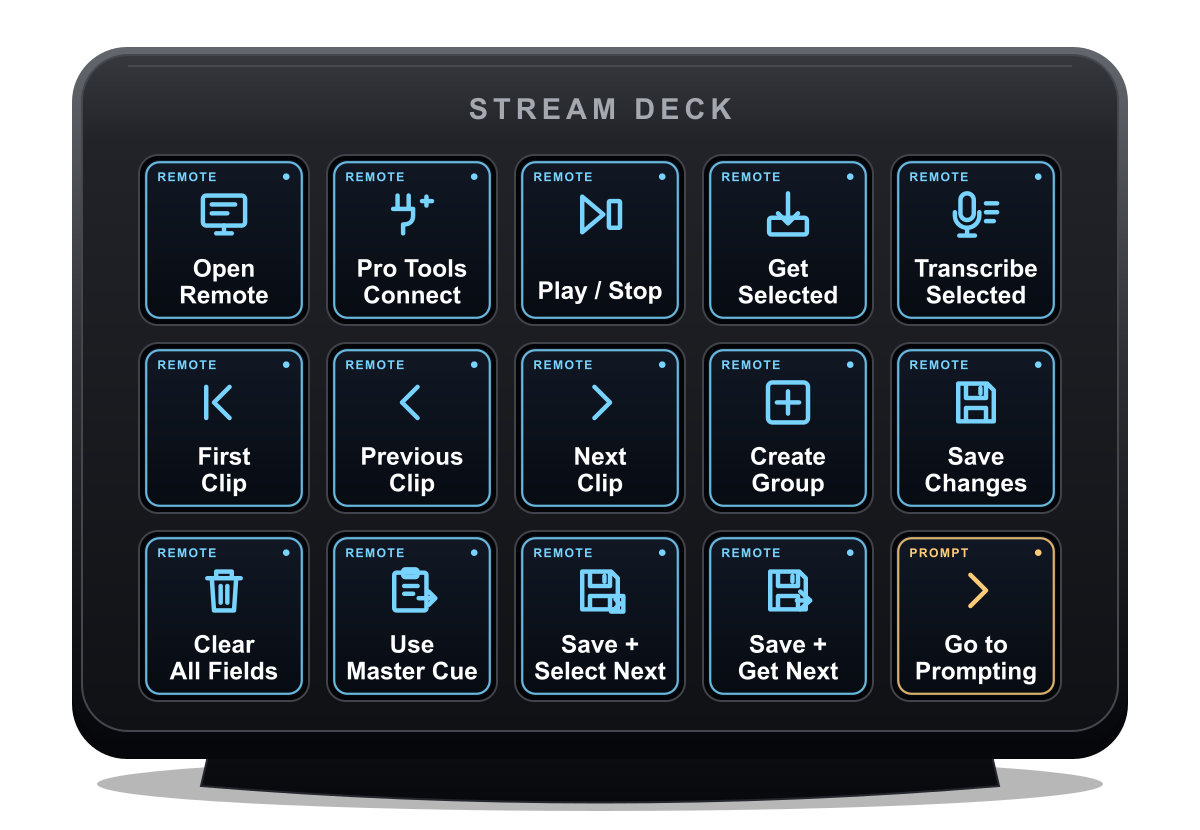
Working with episodes and reels
A single local project can contain multiple episodes and reels simultaneously, including reels within episodes. Each cue stays associated with its episode or reel, while cast, schedules and recording sessions remain in the same project.
Choose an episode to focus your work, filter the cue list to a reel, or use All episodes to work across the production. Cue-sheet and report output can follow the current episode selection, include all episodes, or use a chosen set of episodes.
Picture and returned audio are linked to the project. Pro Tools can be open for Sync, prompting and recording; most preparation, paperwork and review works without it. Cue identity survives renumbering and revisions. Timecode can be SMPTE, or 35mm four-perf feet and frames.
Most screenshots on this page are The Last Beacon, a fictional two-episode production at 25 fps. E01, The Signal, starts at 01:00:00:00. E02, The Return, starts at 02:00:00:00. Six fictional cast characters play twelve cues in each episode — 24 cues in all. Not every screenshot uses those counts. Some status and alignment examples still use separate synthetic Maya Chen practice data. Every example is fictional.
Full dialogue formatting
Put emphasis exactly where the performance needs it. Mix fonts and sizes, add colour, and combine bold, italic and underline within the same cue.
Keep the formatting in your cue sheets. PDF preserves the styled dialogue; Word and Excel keep it as editable text.
The cue list and rich text
Two ways to read and edit your cues
Switch between Table and Script without changing the cue list, current selection or filters. Both views share the same edits, Undo/Redo, Save and autosave. The reading-view settings are separate from cue-sheet output settings.
Use the grid and page/letter icons to switch views. Your preferred view is remembered between sessions.
Table view
A familiar spreadsheet-style cue list for scanning, sorting and filtering dialogue, timing, characters, scenes, status, priority and flags in columns. Open Cue Details for the selected cue’s full text and formatting.
Script view
A lighter, Word-like reading layout. Scene headings group the cues; character, cue number and optional timecodes sit beside the dialogue, with notes underneath. Dialogue shows its saved fonts, sizes, colours, bold, italic, underline and paragraph alignment.
One click stays in reading mode. Double-click, or press and hold briefly, on dialogue or an existing note to start editing. While editing dialogue, the formatting toolbar appears at the top of Cues. Notes have the same double-click/hold activation but are ordinary notes text. Turn on Expanded formatting for font, size and alignment. Editing in the Table view works as before.
ADD and TBW stay graphic toggle buttons. A reason looks like ordinary text; click it to choose a preset or enter your own. Text… makes the reading display bigger or smaller without changing saved font sizes, and sets width and whether timecodes are shown.
Dialogue formatting
Select the words to style in Cue Details or while editing dialogue in Script view. Enable Expanded formatting for font, size and paragraph alignment. Set a style for newly typed text, or change just the selected words. Selective cleanup removes chosen styles without changing the wording. Compact Pro Tools clip names and performer prompting have their own formatting support.
Language and metadata
- macOS spellcheck, a project ignore list and a chosen spelling language are included.
- British or American interface wording is a separate choice from the spelling language.
- Optional metadata covers production-specific priority and reason vocabulary, ADD/TBW, breaths, vocals, safety and supplementary flags.
Cue numbering with tokens
- Cue numbers are built in one mixed text-and-token editor.
- Combine ordinary text with draggable coloured tokens from the source well.
- Tokens: Counter, EpisodeNumber, ReelNumber, PictureVersion, SceneNumber, CharacterCode, CharacterName, ProductionName, EpisodeName, ReelName, Version and Revision.
- Tokens can be moved, deleted and reordered. The preview shows the resulting cue number.
- Insertion numbers place new cues between existing numbers without renumbering the issued list.
- Manually entered cue numbers are preserved until you return them to automatic numbering.
- Cue identity is independent of the displayed number, so renumbering does not break links.
- Before a renumber is applied you can preview and review its scope.
The Last Beacon uses the pattern [EpisodeNumber]-[CharacterCode][Counter], so the first Mara Vale cue in E01 reads E01-MV001. Inserting between existing cues can use a point number, preserving numbers already issued. Renumber deliberately rebuilds the automatic sequence after review; cue identities and links stay intact.
Numbering on the Cues toolbar keeps the renumber actions and Include muted cues when renumbering together. That remembered choice is independent of output inclusion. Excluded muted cues keep their numbers, which remain reserved to prevent collisions.
Finding and organising cues
Lists on Cues opens saved lists, revised cue-list import, cue history and comparison, and Client Cue Review. New cue, Filters and Edit are labelled. Table and Script share the same selection and edits. Cue videos opens from the sidebar.
Filters
- Combine character, status, priority, ADD/TBW, reason, scene, text and time-range filters.
- Filters active stays highlighted with the panel closed.
- Clear filters clears within the working episode; All project cues also clears the episode restriction.
- Saved filters and sort order find current matches, not a frozen copy of an old selection.
- Follow timecode respects the current filters, so the list does not jump to a cue you have filtered out.
Bulk edit and search
- Bulk-edit status, priority, character, reasons and more across the selected cues.
- A global project search finds cues, sources, bookings, takes, revisions, characters and episodes or reels.
- A command palette with keyboard navigation moves through a long list.
Earlier cues & reserve
Find a line from an earlier picture version or a removed scene by its words, character, scene or picture version. Inspect its original dialogue, timing and context. Restore as reserve keeps it in a separate searchable reserve list until it is needed. Place at current selection creates the line at the chosen Pro Tools range and saves its linked project cue. Its earlier context remains available.
Muted cues
Edit Muted directly in the Cues table, Script view or Cue Details. Muted rows use subdued italic text; a recut cue containing both states shows Partly muted. Mute edits support Undo/Redo and survive saving and reopening. Muting does not put a cue in reserve or change its recording status.
Turnover folders and refresh
Inventory
- Point PT Session at the top-level delivery folder. It recursively inventories that folder and its subfolders.
- Episode, reel, cut and role are reviewed before anything is accepted.
- A turnover might contain a DNx or MXF master, smaller QuickTime references, WAV/BWF dialogue and FX stems, EDLs and an AAF delivery document.
- Embedded source timecode and BWF timestamps are read where available.
- The Last Beacon turnover contains MP4 guide picture, guide speech WAVs, returned takes, scripts and EDLs.
- Import registers the original files. It does not create proxies, bounces, transcripts, recorded takes or cues by itself.
- Ambiguous roles or origins need explicit review.
- Unique suitable picture and guide links are chosen for the reviewed episode, reel and cut. One selected guide WAV plays at a time.
Refresh and placement
- PT Session remembers multiple delivery roots.
- A revised turnover is reviewed as new, unchanged, moved, changed and missing files against the last inventory.
- Locate folder reconnects a root that has moved.
- Changed files receive new inventory records.
- New episode or reel deliveries can be accepted after review.
- Source files must remain available. PT Session references them; it does not copy the whole production into the project.
- Selected pictures and WAVs can be imported to new tracks at their confirmed origins in the connected Pro Tools session.
- Existing tracks and clips are preserved. Placement adds new tracks.
- Source and destination frame-rate compatibility is checked. Completed per-session receipts prevent duplicate placement.
- If a Pro Tools request is interrupted, inspect the actual placement before retrying.
Import formats and review
Sources
- Read saved PTX files, the open Pro Tools session or Session Text Info exports.
- Excel, CSV, TSV and text. Word shooting scripts and cue sheets.
- PDF with selectable text, including studio cue PDFs.
- Structured JSON, JSON Lines and TSV exchange.
- Avid markers, CMX EDL, SubRip SRT, WebVTT, EBU STL and Avid SubCap.
- MIDI, TTAL, VSLink/Pyxis and supported studio cue-text profiles.
- Shooting scripts arrive as untimed cues. Timed formats arrive as timed cues.
- Source clock, encoding, delimiter and heading mapping are set per import.
- Reusable source profiles remember the setup for the next turnover from the same production.
Review before importing
- Included, excluded, new, updated and matched proposals are visible before cues join the list.
- Character and shortcode mapping can be adjusted during review.
- Invalid timings and ambiguous identities are flagged.
- Source clock conversions are shown before anything is accepted.
- An import-review draft can stay open while you navigate and save unrelated work. Cancel review clears that draft without importing.
- Import history and a pre-import safety copy are kept.
- Revised scripts preserve missing fields — an absent field keeps the current value.
- An explicit empty field can clear supported fields.
- Revised cue lists also open from Cues → Lists. Review preserves cue identities and history.
- Cue Exchange transfers saved cues in CSV, TSV and JSON Lines, replacing the complete saved cue list only after a compatibility check, review and a safety copy.
Timing and import notes
SMPTE timecode labels are hours, minutes, seconds and frames, not decimal seconds. An In is a position; the duration is Out minus In. Pre-roll and post-roll add listening context around a cue without extending the stored dialogue range. Supported project rates remain 23.976, 24, 25, 29.97 non-drop, 29.97 drop-frame and 30 fps; confirm drop or non-drop as well as the rate, the source origin and the destination rate before accepting a timed import. 35mm four-perf uses 16 frames per foot against a confirmed picture origin; it is a display option, not 2-perf or 3-perf support. PT Session retains supported physical sample and subframe timing; do not manually round exact source placement.
In reviewed imports, map character identity and columns, inspect the included, new, updated, matched and invalid proposals, then apply only the intended changes. PDF source import needs selectable digital text and does not silently OCR scanned images. Shooting-script lines may arrive untimed; timing comes from spotting, not from guessed alignment. Import profiles remember the production setup, but review each changed turnover rather than accepting it unseen.
Picture and timeline
Spotting
- Spot against original guide movies and a guide WAV, with a picture timeline origin so picture and cues share a reference.
- Capture In and Out at the current frame, nudge either boundary, or apply a range.
- Step to the next cue that is not fully timed.
- Use playback and frame stepping to position the playhead. Pre-roll and post-roll audition the lead-in and tail.
Picture revisions
- Run scene-change detection and navigate between the detected shots.
- A picture revision carries a version, reference and notes.
- Snapshots are preserved. A before/after comparison shows added, removed, retimed and rewritten cues when a new picture version arrives.
Local transcripts
On the Mac
- Transcribe a guide WAV, or the active picture’s audio, directly.
- Choose the channel or the mix, and the explicit linked-picture start or offset.
- Guide transcription shows its activity. Cancelling keeps the previous transcript.
- Transcription runs locally on your Mac, without uploading media to a transcription service.
- Local Parakeet or Whisper models are downloaded separately. Transcription itself does not need a connection.
- Parakeet requires Apple Silicon and macOS 14 or later. Whisper models support other compatible Macs and languages.
From words to cues
- Correct the text and timings in place.
- Highlight words for one ADR cue, or tick several passages to create several.
- Assign characters and create timed cues inline. Each cue keeps a link back to its source passage.
- Satisfied and part-satisfied marks show words already used. Clearing a mark is explicit, so reuse is a choice.
- Version comparison keeps earlier transcripts reachable.
- Export text, Word, timed SRT or WebVTT, or PTX dialogue clip groups. Timed formats require timings.
A first production route
A small project with a few characters and cues is enough to produce cue sheets. Picture, bookings, returned audio, cloud accounts and a Pro Tools connection are all optional for that task. Name the production, confirm the frame rate and picture origin, add or map characters with distinct shortcodes, then import or enter a few cues. Review the timecodes and wording, and export a sample actor sheet to inspect its production and character headings, cue numbers, timing and formatting before committing to the full package.
Add picture when spotting needs it, and add bookings when recording is planned. A .ptsession file stores the production, cast, cue, planning and take data, project settings and saved transcript information; guide movies, guide WAVs, recordings and transcription models remain separate external files that the project references rather than embeds.
Projects can hold multiple episodes and reels, so establish the Working episode and the export scope deliberately before generating paperwork. Duplicate display names are valid when unique character shortcodes identify them — two characters sharing a name stay distinct through their codes.
Bidirectional Pro Tools cue sync
Live Pro Tools Link and Remote require Pro Tools 2025.6 or later. Some live track-colour actions require Pro Tools 2025.10 or later.
Manual review and Apply
- Manual Sync compares project cues with the open Pro Tools session, including unsaved Pro Tools edits.
- Retime a cue on the timeline, or rewrite notes in PT Session, then run Sync when you are ready.
- The comparison uses the last values confirmed in both applications.
- Proposed changes are shown first. Choose Apply to Pro Tools, Apply to PT Session, or Apply to both.
- In manual Sync, changes are written only when you choose Apply. Save the Pro Tools session afterwards.
Show choices
- Show choices group the comparison: Changes and decisions, Needs a choice and All reviewed cues.
- Choosing a field value records a decision; Apply writes the reviewed result.
- New groups and deletions are reviewed explicitly.
- Remembered track-to-character assignments reuse compatible tracks. An empty Pro Tools session is a valid starting point.
- Hidden cues and cues outside the working episode keep their links.
Independent edits and conflicts
Independent edits on both sides survive. A Pro Tools retime and a PT Session note edit are different fields, so both are kept. When the same field was edited on both sides, that competing change is presented for your decision.
Recuts and mute
A recut that leaves linked -01 and -02 pieces is still one cue spanning the surviving pieces. Sync does not consolidate or render them. Sync cues reviews and reconciles mute status in both directions: existing Pro Tools groups are muted or unmuted in place, retaining their audio, names and timing. Recut pieces keep their separate mute states unless you explicitly set the whole cue. Older links may ask for a mute choice if the applications disagree.
Scope
Use the selected episode and its matching Pro Tools session for manual review. Automatic updates cover existing linked cues across episodes, including cues hidden by filters. A combined super-session remains a separate offline PTX export.
Optional automatic updates
Automatic cue updates are optional and initially off. When enabled, non-conflicting edits to existing linked cues can pass in both directions without a manual Apply. Independent edits are retained; same-field conflicts, new cues, deletions and uncertain links remain for reviewed Sync. Recording, disconnection and session-identity contexts are handled so an update is not applied blindly. Sync can stay fully manual: Read, Review, Apply.
A frame-rate mismatch opens a dialog showing both rates; sync stops without applying changes.
Live cue desk and Pro Tools Remote
Beside the session
- Apply an exact selection to a cue, create a new cue from a range, or locate a saved cue range with pre-roll.
- Create a named clip group over an empty or occupied range, and prepare recording character tracks.
- Marker point sync is a separate reviewed operation from timeline cue-group Sync.
- Record Ready renames tracks that are already record-enabled. It does not arm tracks and does not press record.
Pro Tools Remote
- A compact window for cue text, notes, engineer note, scene, recording reasons and flags while you create or edit clips and region groups.
- Dialogue can be compact or expanded. Long compact ADR dialogue continues in automatic linked AP groups and reads back as one complete cue.
- Read or update a selected group, create a group from a selection, or save changes and move to the next group.
- A searchable original shooting script browser finds lines by character, scene or phrase.
- Selected clips can be transcribed locally and reviewed into cue groups — separate from the guide Transcript.
- Independent source and destination track choices, and character ADR track placement, are supported.
- Supplementary (SUP) points add wipe triggers to a main cue without creating another numbered dialogue cue.
- The fixed layout scales uniformly when the window is resized; 100% restores its natural size.
Offline and overlay
- Offline PTX export can create a master or separate character sessions when a live connection is not needed.
- A combined super-session is this offline preparation, not live Sync.
- Simple Cue shows the selected Pro Tools cue through a live connection. It is separate from timed performer prompting.
- Move and resize Simple Cue to fit the Pro Tools Video window, and lock it for click-through.
Move between Pro Tools and Remote
Control–Option–Command–R opens or focuses Remote from Pro Tools, including when Remote was closed; PT Session 3 must be running. Enable it once in Remote’s Global shortcuts → Use shortcuts while Pro Tools has focus. A newly opened Remote is ready for cue-text typing; an existing Remote keeps its draft and typing position. Option–Command–F returns to Pro Tools. Assignments are customisable.
Closing Remote leaves the show/focus shortcut available; other global cue actions require Remote open.
Mute / Unmute acts immediately on the selected Pro Tools clip or group, without replacing it. An Active/Muted indicator shows the last state read. Unsaved Remote text is kept, and no project is required. Use Sync cues to bring that change into a linked project.
Original-script following in Remote
Load or search the original shooting script by character, scene or phrase. Optional Lock to MIDI or Lock to PTSL can follow a likely script line using cue links, dialogue, character and scene, or supported timed lines. MIDI following is frame accurate; PTSL following is approximate and not frame accurate. Following starts off.
Manually selecting a script line pauses script following; selecting the lock resumes. The view does not invent timing for untimed lines, and uncertain repeated lines need a manual choice. Following does not copy script words into the Remote draft, rename a group or enable automatic edits; use the explicit selected-line action to load wording. A relevant reference also permits local transcription checks showing expected versus spoken wording, with omitted and added words. Recognition remains what was spoken, rather than silently being replaced by the script. A match is word evidence, not a judgement of performance. With no suitable reference, transcription stays available. Corrected draft wording is editorial text; re-transcribe for a fresh audio comparison.
Cast track layout
Under Pro Tools Link → Recording, optional Cast track layout… prepares track roles for selected characters. It starts off, and opening it creates nothing. For each selected character it can prepare or reuse a main cue lane, an optional character folder, overlap lanes, a breaths lane and a TV-safe coverage lane; names, suffixes and colours are editable. These are track roles: no breaths are generated and no TV-safe dialogue is rewritten.
Preview Create or Reuse against the connected session, refresh if tracks have changed, then Apply valid layouts. Valid character layouts can be applied while another needs attention. Reused tracks keep their colours unless Apply chosen colours to existing tracks too is selected. Existing audio remains, tracks stay unarmed, and creation does not record, automatically import takes or create every cue group. Normal hand-built and character-track workflows remain available alongside it.
Performer prompting and output
What the performer sees
- Dialogue, cue identity, countdowns, wipes, beeps, punch and duration are adjustable to the room and the performer.
- Prompting can switch between the selected booking and Master cues. Character list, order and session wording are adjustable.
- Cue number, character, dialogue and context are shown.
- Font, colour, background, padding and fit are set for the prompt, top or bottom. These display settings are separate from mixed formatting in the cue editor.
- Countdown from 1–9 uses frame-based timing so the wipe and numbers finish on cue In.
- Choose the number of project frames per count; 16 frames correspond to one 35mm four-perf foot.
- Three wipe styles: Progress bar, Travelling + target bars, and Left + right to centre.
- Beeps, cue-In punch and an In-to-Out duration bar are configured independently.
- Pre-roll, supplementary recue and wipe, and optional rehearsal navigation and operator preview are supported.
- Studio presets, Test Fire and Hide All manage the room setup.
Routes and MIDI
- Desktop guide picture plus prompts puts picture and prompts on one screen.
- A transparent overlay prompts over the Pro Tools Video window while Pro Tools runs the picture, with click-through lock.
- Compatible Blackmagic DeckLink/UltraStudio and AJA Kona/Io hardware output is supported for rooms with suitable video hardware and setup — confirm the route in your own room before a session.
- Live PTSL cue exchange with Pro Tools is separate from MTC/MMC transport following.
- MTC/MMC follows the Pro Tools transport and drives timed cue prompting as it rolls.
- Arming a prepared project cue and triggering discrete MIDI messages suits pickups and non-linear passes.
- A MIDI receiver can display text and wipes without a project. Text and wipe messages alone do not drive picture.
Context and rehearsal choices
- Cue appearance can show a next-cue preview, preceding-speaker context, cue Notes and bold, italic and underline emphasis; they start off.
- Context follows included characters; SUP triggers are not dialogue previews.
- Incoming MIDI text receiver mode has no project neighbours to add.
- These switches do not change wipe, beep or countdown timing.
- Rehearsal controls can Locate, Previous/Next and Replay from cue with pre-roll; locate does not start playback, Replay explicitly does.
- Rehearsal controls require the intended live Pro Tools connection, while ordinary MTC prompting does not require a PTSL connection.
- They do not press Record or infer record, rehearse or relisten modes from moving timecode.
Performer layout and cue order
- Optional Performer layout preview shares the open desktop performer output; without it the panel is a Cue layout preview, not a live picture monitor or clean director output.
- Prompting can save its own cue order without renumbering or reordering the master cue list.
- Session-prepared cues retain booking-specific edits.
Tracks view
Read source clips and project cues in a multitrack timeline, with a time ruler, marker lane, position counter and session overview. Resize individual tracks or use height presets, and apply a height to one track or all displayed tracks. Recall retained session or track markers from the ruler or searchable marker list. Fit the session or selection, zoom and navigate without changing cue timing. Muted clips stay visible with subdued styling and an M marker.
- Inspect source clips and project cues across tracks and time, with the wider timing context intact.
- Retained source audio and group evidence is shown across multiple lanes. Overlapping clips remain visible.
- Select a clip and open its cue to review its details.
- Zoom or fit the timeline to the displayed range. Muted clips remain visible with subdued styling.
- Show filters which tracks are visible; Type changes the selected track’s assignment.
- Custom labels match how the job is organised.
- Keyboard navigation moves through clips and tracks, with optional following of the Pro Tools selection.
Recordings & Fitting
Two application tabs keep the work clear: Status matrix first, then Recordings. The matrix tracks cue progress. Recordings keeps returned audio, the guide, source waveform, transcript, saved selections and assembly tracks together.
Track cue progress
Filter by episode, character or text. Review recording counts and update fitting, checking, delivery, editor and notes in the Status matrix. Clear filters restores the view and keeps checked cues and typed progress notes. Project-specific status columns and reviewed bulk changes are available. A cue’s progress is separate from which audio is placed in the assembly.
Import and group returned audio
Add individual WAV/BWF files, scan folders and subfolders, or review a returned PTX and its source media. Choose the recording session in Recording Sessions before Add PTX. Filenames, cue/character identity, BWF and iXML metadata, source timing, track/clip evidence, file length, size and dates help matching. Review uncertain proposals before importing. Related split-channel files are assigned together. Link to cue… matches an imported recording later. Keep unlinked is a deliberate choice for an unmatched import: it does not reimport the file or change the original audio or timing. Unlinked recordings stay reachable while a working episode is selected. Leave files unlinked applies to the next import, not to a take that is already linked. Sources stay unchanged.
Listen, mark and compare
Select a recording and mark In/Out on its waveform or drag across timed transcript words. Transcribe runs locally; Transcribe missing is the separate batch command. Timecode identifies ranges. Play, Pause, Stop and Loop sit beside the source; with Loop off, playback stops at Out. Save several named selections in one recording, including overlapping alternatives. Update selection changes the saved range; Save as new selection deliberately keeps another. Saved selections stay visible and return when you switch recordings or reopen the project. Compare as many recordings as needed by switching files and auditioning their saved selections. The guide remains beside the source for comparison. Preferred, approval, placement against the current picture, and the delivery choice are separate decisions, shown above the editor. Clear delivery choice sits beside Choose for delivery, keeping the recording and review decisions.
Find repeated readings
After transcription, choose Find repeats from the transcript’s More menu to find repeated phrases and close wording variations throughout a long file. Choose a phrase and step through its readings, then listen and trim before saving useful selections. Detected readings are separate from manually saved selections; no example phrase or cue link is required.
Build an assembly
Choose Add track beside Assembly to create a named destination track. Drag source selections onto a track, or use To track and Add to assembly at the assembly cursor. Saving a selection is a bookmark; adding it to the assembly creates a separate clip. Selecting an assembly clip reveals its source recording and range. Source ranges and destination positions stay distinct. Move, trim, split, duplicate and nudge clips; Undo/Redo and explicit clip details are available. The assembly and saved source selections are stored with the project.
Build from script
Choose a sentence from a cue’s recordings, compare readings and hear an alternative in context before choosing it for the rough assembly. Select individual words for phrase or word replacement, or mark a source range manually when transcript timing is broader. Move, trim, split and save the assembly. Listening uses original audio; PTX retains source channels, ranges and timing. Simple cuts, without crossfades or time stretching.
Find performances across the project
Find performances… searches spoken dialogue across every project recording, including unlinked files and other episodes. Search words or a phrase, audition original audio and trim the actual range. Optional similar wording is labelled. Keep temporary A/B readings to compare at the same picture position; picture is optional. Hear in scene adds surrounding assembly audio, adjustable lead-in/out and looping; another reading can queue for the next pass. Match audition levels affects comparison listening only, not saved levels or delivery.
All project… in Build from script, or Clip details… → Find alternatives…, replaces an assembly passage as one undoable edit while retaining surrounding material. Alternatively spot the source range into Pro Tools or export a source-backed PTX with original channels and timing.
Align microphones offline
Align all… opens batch Auto-Align Post processing from the Recordings toolbar. Add files or recursive folders, choose Time and Phase, and process each take against one fixed original reference. Polyphonic WAVs use channel 1; split microphones are grouped using names and metadata. Other microphones align directly to that original, avoiding circular alignment. Results normally go into each source folder’s _AUTOALIGNED subfolder. Matching verified outputs are reused so unchanged work is not processed again. Auto-Align Post and an activated iLok licence are required.
Export and spot
Export PTX… writes a source-backed assembly session, preserving the included clips’ source ranges, destination positions, tracks and channel layouts. Keep those linked WAVs available. Spot in Pro Tools… uses the assembly and its spotting choices. Use aligned microphones keeps the original reference microphone alongside verified aligned companions; Align automatically when spotting can create missing alignment results on demand. Offline alignment renders WAVs separately. Automatic conversion of an entire imported PTX to an aligned replacement PTX, and automatic aligned-media substitution in assembly PTX export, are not currently offered. Optional whole-recording review, transcript exports and BWF/whole-take choices remain under More… → Details….
Cue sheets, reports and interchange
Normal PDF reading copies can preserve mixed fonts, sizes, colours, bold, italic and underline. Shooting Script Style Actor PDFs use black 12-point Courier and keep bold, italic and underline in reading copies. Editable PDF dialogue fields use plain text. Word and Excel keep the styled dialogue as editable text.
Ordinary export uses project cues: select characters, choose formats and use Export cue sheet package…. The other primary actions alongside it are Export PTX…, Export PTX template… and Review returned sheets….
Episodes to export has exactly two choices: Follow main selector, which uses the Working episode at the top of the main app (All episodes there includes every episode and unassigned cues); or Choose specific episodes, which reveals episode checkboxes. The resolved scope, applicable counts and active output and filter summaries stay visible beside the output.
Include muted ADR cues stays visible beside the cue count in Export Cue Sheets, even when Export settings is collapsed. The same project setting is shown under Cue videos → Cues included and applies to cue sheets, cue videos and PTX. Renumbering has its own independent choice. Mute never automatically means reserve.
Ordinary export has no cue-source selector; session-specific export starts in Recording Sessions with Export this session’s cue sheets….
Layouts
- Characters to export are explicit checkboxes, with All and None.
- Built-in Detailed, Engineer and custom layouts remain available, alongside Actor and Actor Shooting Script Style.
- Up to four independent PDF layout slots — PDF 1 to PDF 4 — in one export. Format choices are separate.
- Preview full sheet uses the same current scope and layout as the export.
- In standard PDF layouts, engineer-only notes appear on Engineer sheets. Engineer take grids support up to 24 takes.
- Combined, blank, ADD and TBW outputs follow the choices you make. Nothing extra is added automatically.
Actor PDFs: Shooting Script Style
Give directors and actors a familiar shooting-script layout, with dialogue where they expect to find it. The clear central column makes lines easy to read and follow during a session, while cue numbers and In timecodes keep each line easy to identify.
Choose Actor or Actor Shooting Script Style independently in any PDF 1–PDF 4 slot. Include both styles in the same package when you need them. Shooting Script Style gives actors a shooting-script reading layout: black 12-point Courier dialogue, left aligned within a narrow central column, with cue number and In timecode alongside each cue.
ADD and TBW flags appear when set. The actor and character are named in the header, without repeating the character before every line. Out timecode, notes and reasons are omitted. A4 and US Letter are supported.
Reading copies preserve bold, italic, underline and combined emphasis. Editable PDF dialogue fields use plain text in both styles.
Custom PDF designer
- Customise a copy of a standard layout, or start a new one.
- A copy of built-in Actor, Detailed or Engineer retains its built-in presentation; unchanged copies keep fonts, branding, the cue and timecode stack, notes and reasons, and the Engineer take grid.
- Cover page, repeating header, first-page heading, scene group and cue detail.
- Moveable and resizable elements, grid, snap, rulers and multi-select alignment.
- Fonts, spacing, row height, logo and watermark are adjustable, with a real rendered-page preview.
- Design shows independently editable ADD and TBW samples; the Exported page and output use the actual cue flags.
- ADD and TBW begin bold in the defaults and remain independently customisable.
- A4 or US Letter, optional Out timecode and scene ordering. Ordinary PDF reading copies can embed fonts.
- Mixed fonts, sizes, colours and emphasis from the cue editor are shown where the document format supports them.
- Editable PDF dialogue fields and Engineer take boxes keep their existing limitations.
Word and Excel
- Word tables are editable documents, not page-for-page copies of a custom PDF.
- Word, Excel, CSV and text use Columns…, one permanent checklist. IN and OUT are independent fields. Each format remembers its own choices.
- Formatted dialogue remains editable in Word tables and Excel cells.
Round trip
Send a Word cue sheet or an editable PDF, let someone make changes, then review those changes in PT Session with Export Cue Sheets → Review returned sheets…. Independent edits are preserved; conflicting fields are reviewed, and cues still match after renumbering or reordering. For PDF review, the comparison shows At export, In returned PDF and Current project.
PDF dialogue. One independent PDF option is editable dialogue fields. Fill them digitally in Apple Preview and save with form fields intact. Preserve the returned PDF fields rather than flatten or print the PDF.
Engineer take boxes and Select. The other independent PDF option is editable take boxes and Select on Engineer PDFs. Engineer numbered take boxes accept annotations such as C or NG; Select accepts notes such as 2C / 3B. These are sheet annotations, separate from dialogue, the session take log and actual audio take choices: entering Select does not choose a recording for playback or delivery. Accepted annotations can appear in a re-export; general sheets and each booking retain separate notes.
Word. Word returns bring back cue number, In, Out, dialogue and notes, with bold, italic, underline and explicit text colours read back. Extra columns such as Reason provide context; omitted fields retain their project values.
Reports and interchange
- Production summary reports cover recorded and remaining cues, estimates, cast and episode or reel usage.
- Reports → Summary can Export tracking spreadsheet… as a CSV snapshot of workload, estimates, Done and Notes. Spreadsheet edits do not update the project.
- Marking a cue recorded updates that character’s remaining active cues in the report scope, with Undo.
- Recording schedules show bookings, cast, cues and planned duration, including bookings still awaiting a date.
- Call sheets bring together cast calls and production and sound crew.
- Reports remember PDF, Word and Excel choices, including paperwork that is PDF only. Summary and recording-schedule PDFs can append chart pages.
- Cue videos open from the sidebar. They are made from existing guide picture with handles, overlaid cue information, optional guide audio, and streamer and punch choices — not from cue-sheet export.
- Interchange exports include CSV, text, cue-preparation PTX, MIDI, TTAL, SRT and EDL.
Document and table options
Word, Excel, CSV and text each have independent saved layouts through Columns…. Choose the included fields, headings, order and proportional widths for document and table formats; In and Out are separate permanent choices. CSV and plain text have no page width. A Word start-only amendment sheet can retain Cue Number, Character, In, Dialogue and Reason while omitting Out; the project's Out remains. Defaults can be restored per format, and changing Word does not alter Excel, CSV, text or PDF layouts — PDF uses its separate designer.
Included cue number, In, Out, Dialogue and Notes retain their Word-return identities even when headings are renamed or reordered. Reason and other metadata are reference information, not a Word-return edit path. Omitted fields keep their project values; deleting a Word row does not delete a cue, and adding a Word row does not create one.
Avid SubCap exports
Avid SubCap exports write UTF-8 Avid DS caption text with whole-frame timing. Overlapping captions use separate non-overlapping lanes per character, so retain the generated lane files. Untimed cues and ranges too short after frame rounding are reported. Rich text becomes plain dialogue. Keep the exact production frame rate and origin checked at the receiving application.
Cast, recording sessions and status
Cast
- Actors and characters are separate records. One actor can play several roles while contacts, agents and headshots stay in one place.
- Cast-list review and import, short codes and track colours are supported.
- Scope and workload by character are visible. Character assignment does not require rebuilding the dialogue list.
- The Last Beacon cast: Mara Vale (MV), Jonah Reed (JR), Leila Noor (LN), Finn Cole (FC), Dr Ada Wynn (AW) and Owen Pike (OP).
Sessions
- Build sessions and cue queues, including bookings that do not have a date yet. A booking does not require calendars or other optional administration.
- A booking continues directly to its queued cues, cue sheets, call sheet, schedule, take log and Prompting.
- Export this session’s cue sheets… issues sheets for that session’s queue from Recording Sessions.
- Open in Prompting… opens the chosen session’s prepared cue list and its session edits together. Session-only changes stay separate from master cues.
- Booking cue sheets use that booking’s queue and its session wording and timing adjustments. Those adjustments do not overwrite master cues.
- Create sessions from selected cues. See the workload by character.
- Planned recording estimates are shown alongside the actual session run.
- Attendance and confirmations, deadlines, call times, access, travel and agent notes are tracked. Cast call times can be overridden for a booking without changing the cast record.
- Day, week and month views, plus undated work, keep the schedule readable. Selecting a date can reveal a dated booking; undated work remains supported.
- Optional Apple Calendar and Google Calendar connect scheduling with the rest of the day.
Booking progress
- Booking-centric states: Scheduled, Sheets issued, Shot, Fitted and Delivered, with an independent performer confirmation.
- Planned or user-set milestones are distinct from source recording evidence. Marking a booking Shot is a planning state, not proof that audio has been placed.
Editorial grid
- A separate cue-centric grid tracks fitting, checking and delivery independently of booking progress.
- Column and status names, colours and order are editable.
- Responsibility, editor and notes are recorded per cue.
- Filter the list and update selected cues in bulk.
- Open a cue’s returned audio in Recordings. There is no separate Selects timeline.
- Recording counts stay visible separately from user-set progress. A cue’s progress is separate from which audio is placed in the assembly.
Client Cue Review
Client Cue Review is optional and separate from Google Sheets and calendars. Open it from Cues → Lists → Client Cue Review to review cue proposals and fitting progress.
Client Cue Review provides a production-specific browser website for directors, picture editors and invited collaborators, using a private Google workbook. Clients need an invited Google account and a browser — not PT Session or Pro Tools. Cues, Fitting and Requests views show cue context, proposed changes, editor replies, recording evidence and team progress. Setup and publishing belong to the open project, separately from production Google Sheets sync; both can coexist with separate saved connections.
Three everyday actions cover the workflow. Update and check for changes publishes the current cues and evidence, fetches incoming requests and fitting, and sends pending decisions. Fetch requests reads incoming work without publishing current cue edits. Open client website shows the saved production link. The website displays the most recent publication, not a live feed of unsaved project or Pro Tools data. Creating the link does not automatically invite anyone; manage workbook invitations and share the client link through normal production communication. Invited workbook Editors can also open the underlying workbook if they have its link, so do not expect hidden spreadsheet data or anonymous access.
Requested field changes work field by field. Select only the fields to amend, with Original, Current and Proposed comparison for the editor. Dialogue and Notes can be accepted independently. Competing same-field changes require a choice. Submitting a cue proposal does not itself change the project; a reply or decision can be saved locally while offline and sent on a later successful update. Team Fitting updates are shared directly and retrieved into the desktop view; they are distinct from reviewed dialogue requests. A Fitted status does not import audio, select a take or spot into Pro Tools. Cue, take and placement evidence reflects publication time.
Cloud Sync
- Cloud Sync covers optional Apple and Google calendars, and a separate Google Sheets reviewed field-by-field sync.
- Sheets sync covers production, characters, cues, sessions, session cues, cast, takes and actors.
- The local project remains usable without any cloud connection.
- The comparison uses the values last shared successfully by the project and the Sheet.
- Independent edits on either side are kept.
- Competing changes to the same field are detected and explained so you can resolve them before syncing.
Local projects, backups and recovery
- Projects are stored on your Mac.
- Autosave, named Undo/Redo history, backups, recovery and file checks help you get back to earlier work.
- PT Session keeps a local copy of the latest saved project data.
- Keep your own backups of projects and of linked picture and audio.
- No usage analytics are collected. Local preparation and transcription stay on the Mac. Connected sharing happens only when you explicitly use the integration you chose.
- Calendars, Sheets, hardware video and Pro Tools connect only when you use them.
- Use section navigation and search in Preferences, and find tasks across the whole project.
- Light and dark themes, and a density setting, are included.
- British or American interface wording, with a separate spelling language.
- A keyboard command palette and the complete manual (edition 90) are included.
Planning and safety distinctions
Actor records and character roles are distinct; one actor can play several roles. Bookings may be undated, and session wording or timing adjustments do not rewrite master cues. Scheduled, Sheets issued, Shot, Fitted and Delivered are production states, separate from recording evidence, the selected take, assembly placement and the delivery choice.
Export this session's cue sheets… uses the booking queue, while ordinary export uses project scope. Save and reopen a working project as you go; Check project file is read-only, Create backup copy creates a checkpoint, and cleanup first creates a checkpoint. Import history safety restores whole-project state, so it also rolls back unrelated later changes — Undo serves a smaller recent edit.
Recovery Center's unsaved journal and the automatic local latest-project copy live on this Mac and do not replace independent project and linked-media backups. A project copy alone does not include external recordings or picture. Publishing or syncing to other systems is not undone just by local Undo.
Questions and answers
Can one project hold multiple episodes and reels?
Yes. Multiple episodes and reels can be held in the same project at the same time, including reels within episodes. You can focus on an episode or reel, or work across the production. Cast and recording sessions stay in the same project, and cue sheets and reports can cover the current episode, all episodes or a chosen set of episodes.
Do I need Pro Tools?
Cue preparation, paperwork, offline PTX export and recording review work without Pro Tools. Live Sync, Remote and session preparation need a compatible Pro Tools connection; Pro Tools performs the recording.
Is transcription in the cloud?
No. Installed Parakeet or Whisper models run on your Mac. Media is not uploaded for transcription; models are downloaded during setup.
Does it run on Intel Macs?
Yes. Separate Apple Silicon and Intel builds are available for macOS 12 or later.
Is Google Sheets the same as Pro Tools Sync?
No. Sheets sync is a reviewed field-by-field exchange of production tables. Pro Tools Sync compares timeline cue groups with the open session, including unsaved edits.
Which outputs are editable?
Word cue sheets are editable field by field and can come back under review. PDFs offer two independent editable options: editable dialogue fields, and editable take boxes and Select on Engineer PDFs — both reviewed with Export Cue Sheets → Review returned sheets….
Can cues update automatically?
Yes, if you enable automatic cue updates. The option is initially off. Non-conflicting edits to existing linked cues can pass in both directions; competing edits, additions, deletions and uncertain links remain for review. Manual Sync still shows proposed changes before you choose Apply.
What happens to a recut cue?
A recut that leaves linked -01 and -02 pieces is still one cue spanning the surviving pieces. Individual groups and gaps stay as they are; Sync does not consolidate or render them.
How many computers can I activate?
A commercial licence lets you activate up to three Macs at a time. Online and offline activation are available. Once activated, you can use PT Session offline.
What frame rates and timecode formats are supported?
Supported project rates are 23.976, 24, 25, 29.97 non-drop, 29.97 drop-frame and 30 fps. Positions can use SMPTE timecode or 35mm four-perf feet and frames against a confirmed picture origin. Source and destination rates are checked for applicable imports and placement.
Do fonts, sizes and colours carry into cue sheets?
Normal PDF reading copies can preserve mixed fonts, sizes, colours, bold, italic and underline. Shooting Script Style uses black 12-point Courier and retains bold, italic and underline in reading copies; it does not keep mixed fonts, sizes or colours. Editable PDF dialogue fields use plain text in both styles. Word and Excel keep the styled dialogue as editable text. Compact Pro Tools clip names have narrower formatting support, and performer prompting uses its own font, colour and fit settings.
What about backups?
Projects are local, with autosave, Undo/Redo, backups, recovery, integrity checks and a local copy of the latest saved project data. Keep your own backups of projects and of linked picture and audio.
Can I use Cloud Sync without Google?
Cloud Sync covers optional Apple and Google calendars and a separate Google Sheets field-by-field sync. The local project remains usable without any cloud connection.
How do I find a line removed by a recut?
Find a line from an earlier picture version or a removed scene by its words, character, scene or picture version. Restore as reserve keeps it in a separate searchable reserve list until it is needed; Place at current selection creates the line at the chosen Pro Tools range and saves its linked project cue. Reserve membership is separate from renumber inclusion and from the shared output choice, and not every muted line is reserve material.
Are muted cues included in outputs?
Include muted ADR cues is a single project setting shown beside the cue count in Export Cue Sheets and under Cue videos → Cues included, applying to cue sheets, cue videos and PTX. Renumbering has its own independent Include muted cues when renumbering choice. Muting does not automatically put a cue in reserve.
Legacy Version 2
PGPT Session Version 2 is an older, simpler tool for basic ADR cueing, and remains available as a free download, separate from PT Session 3.
macOS 10.11+ 64-bit Universal Binary · Windows 7+